 NCraft Browser
All your devices — one identity
Add a second computer and your groups, members and history move over by themselves. From then on your devices sync directly: over your own network at home, over the internet on the road.
Add a device nearby
- On the new one: "I already have an identity" → "My device is nearby" — it shows a QR code.
- On the old one: "Profile → My devices → +" — scan with the camera or paste the string.
- Compare six digits on both screens. "Don't match" on one screen shows up on the other too.
- "Device added" — groups, members and history transfer automatically. The new device works without the 24 words.
- Devices are added from the one that holds the key. From a device without the key, enter the 24 words first: a five-minute window opens, and the key stays in memory only.
Add a device from far away
macOS, iPhone and Android. Your own device can be added when it isn't nearby, over the internet.
- On the device you already use: Link a device → "Far away" → "Show code".
- On the new one: "I already have an identity" → "Far away" — enter that code.
- The code only lets the device knock: it is linked once you open its request and compare six digits on both screens.
- The devices can be on different networks: the meeting node only introduces them, data goes directly. If they cannot connect, link the device nearby on the same Wi-Fi.
- On Windows your own device is still added only nearby.
Lost all your devices
- Backup. On a Mac and an iPhone the new device looks for the identity backup in iCloud Keychain, on Windows — in Windows Credential Locker (Microsoft account). If it is there — "Restore identity".
- The 24 words. No backup and no other device — enter the 24 words on the new one. The identity comes back, and your previous devices are revoked as lost. The group manager brings back your groups: ask them to invite you again — with a code or nearby; the history arrives from the members.
- NCraft for Android keeps no backup in the cloud: there it is the 24 words or another device of yours.
- Available on macOS, iPhone, Windows and Android. More about the backup and its price — /browser/security.
My devices
- A registry: "holds the key" / "no key", status light: online / reconnecting / offline / blocked.
- Revoke a device — once, across all groups. The device loses the right to act on your behalf; records it signed remain.
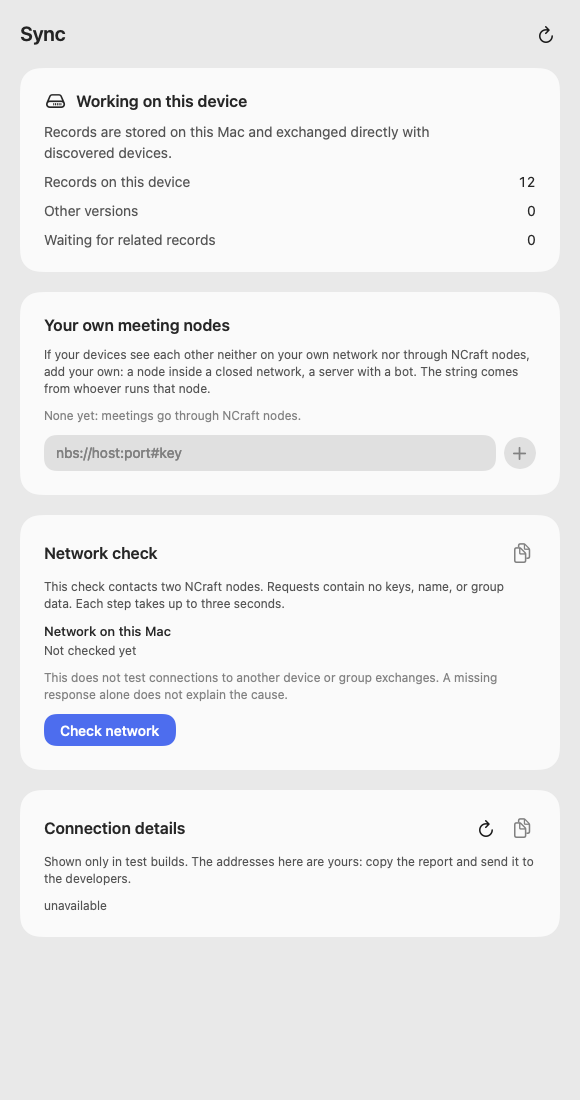
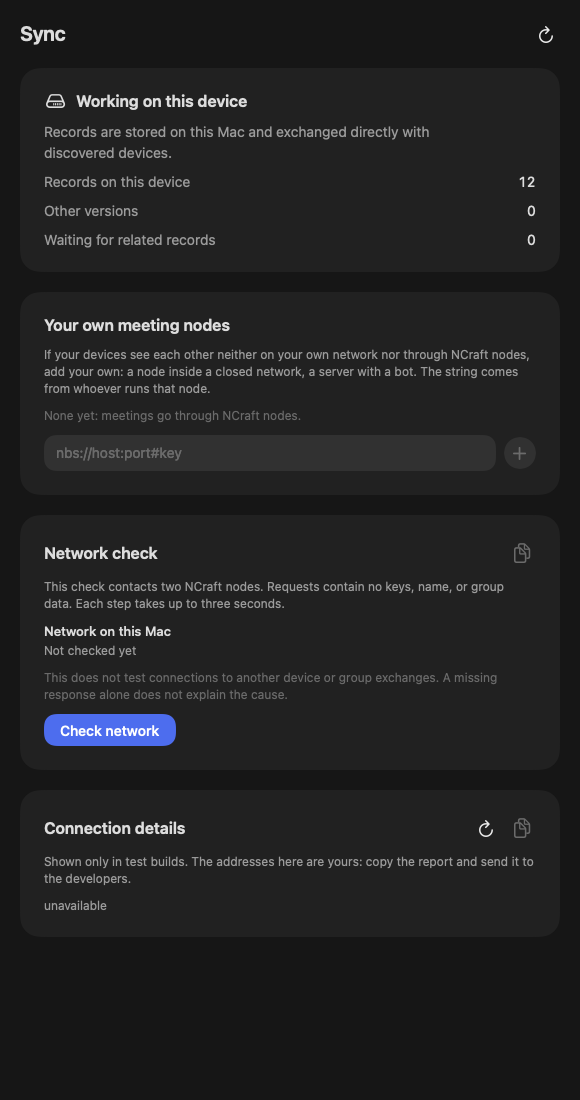
Sync
- Sync runs on its own: directly on your network; over the internet after a rendezvous, with a direct data channel through NAT. Wi-Fi ↔ LTE switches, sleep, restarts and clock changes were tested live (macOS ↔ macOS).
- Sync report: records, versions, pending items, a log of failures (stage, reason, time).
- If a peer keeps sending bad data, after 8 failed rounds sync with it stops — a yellow triangle and "Retry sync".
- Your own rendezvous nodes — add or forget one.
- Windows only: a "Core" card (core version) at the bottom of Sync.
Network check
"Sync → Check network": your local network, UDP (STUN) and TCP to NCraft's nodes and yours; "Copy report".
Disk space
- Chart: how much space records, mail and previews take.
- "Remove expired mail" — per group.
- Clean-up asks first; "Cancel" is the default.
What to allow in the system
- macOS — "Local Network" in System Settings.
- Windows — an inbound firewall rule for NCraft (added by the installer, local subnet only).
This page is a place to talk. Open it in NCraft: notes, tasks and chat about it sit right next to it, in an NCraft group.